How to Track an iPhone From an Android Phone (2026)
Can an Android phone track an iPhone? Yes, in three ways: find your own lost iPhone on iCloud.com, see a family member's iPhone with consent, or use a family app.
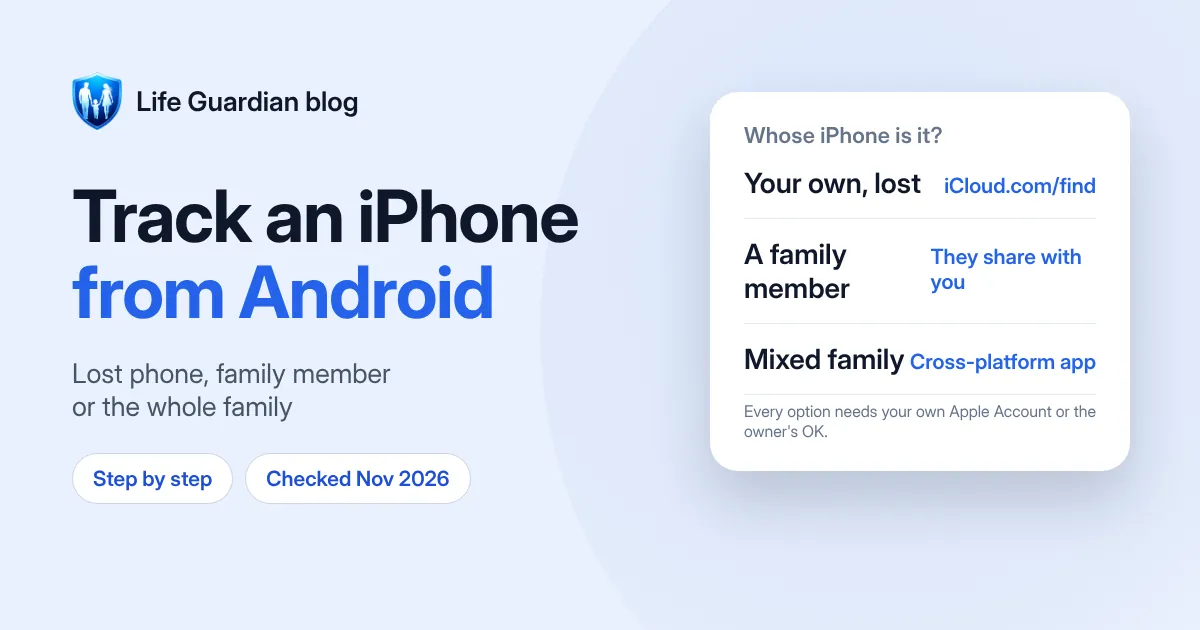
Quick answer: yes, an Android phone can find an iPhone, but how depends on whose iPhone it is and why.
- It’s your own iPhone and you’ve lost it: open a web browser on the Android phone, go to icloud.com/find, sign in with your Apple Account and choose Find Devices. That option doesn’t need a verification code. You can see the iPhone on a map, play a sound, mark it as lost or erase it.
- It’s a family member’s iPhone: they need to share their location with you. Apple’s Find My app doesn’t run on Android, so the simplest free way is for them to share from Google Maps on their iPhone. You’ll then see them in Google Maps on your Android phone.
- You want the whole family on one map, with mixed iPhones and Androids, arrival alerts and an SOS button: use a cross-platform family locator app, such as Life Guardian 24/7.
What you shouldn’t do is install hidden tracking apps on someone else’s iPhone. Every method below only works with the iPhone owner’s knowledge.
We make Life Guardian, one of the apps mentioned in this guide. Apple and Google steps come from their own help pages, checked on 10 November 2026 and linked under Sources. Menu names can change between software versions.
Which situation are you in?
| Situation | What to use | Does the iPhone owner need to do anything? | Cost |
|---|---|---|---|
| You’ve lost your own iPhone | iCloud.com/find in any browser on the Android phone | No, as long as Find My was turned on before it was lost | Free |
| You want to see a family member’s iPhone | Google Maps location sharing, started on their iPhone | Yes: they choose to share with you | Free |
| You’re in their Family Sharing group and have an Apple Account | Find Devices on iCloud.com, for their devices | Yes: they share their location with the family | Free |
| A mixed iPhone and Android family wants alerts and SOS | A cross-platform family locator app | Yes: everyone joins by invitation | Free or paid, depending on the app |

1. Find your own lost iPhone from an Android phone
Apple’s Find My app only runs on Apple devices, and Google’s Find Hub won’t help either: Google describes it as a way to find Android devices, Wear OS watches and accessories (Google). But Apple’s web version works in any browser, including Chrome on an Android phone. Apple says you can sign in at icloud.com/find from any web browser to locate, play a sound on, mark as lost or erase your device (Apple Support).
- On the Android phone, open Chrome (or any browser) and go to icloud.com/find.
- Sign in with the Apple Account used on the lost iPhone. If you’re asked for a two-factor code, which would normally go to the iPhone you’ve lost, choose the Find Devices button instead. Apple says this lets you sign in without a two-factor code to locate your devices (Apple Support). The shortcut is only for finding a device: other parts of iCloud.com, such as Mail or Photos, may still ask for a code sent to a trusted device.
- Select your iPhone in All Devices to see its approximate location on the map.
- If it’s nearby, choose Play Sound.
- If you can’t get it back straight away, mark it as lost (Lost Mode). This locks it with your passcode, suspends Apple Pay, and lets you show a phone number and message on the screen (Apple Support).
- Only erase it if you’re sure you won’t get it back. Erasing removes your data from the phone.
If the iPhone shows “Offline”: it may be switched off or have no signal. Apple says Find Devices shows the last known location for up to 24 hours, and you can choose “Notify me when found” to get an email when it comes back online (Apple Support).
If Find My wasn’t turned on before you lost the iPhone, it won’t appear at icloud.com/find, and you can’t mark it as lost or erase it remotely. You can still report it to the police, who may ask for the serial number, and to your mobile network (Apple Support).
Apple also warns that it will never contact you to say your iPhone has been found. Messages claiming to be from Apple about a found phone are likely to be scams.
2. See a family member’s iPhone, with their knowledge
This is a different job: you want to know where someone else is, such as a teenager, partner or older parent with an iPhone, from your Android phone.
Why you can’t just use Find My on Android
Apple’s location sharing between people needs Apple devices. To share Live Location in Find My, both people need an iPhone, and there’s no Find My app for Android. So the iPhone owner has to share in a way an Android phone can see.
Option A: they share their location from Google Maps
Google Maps runs on both phones, so this is the simplest free option. The iPhone owner starts it: in Google Maps on their iPhone, they tap their profile picture, then Location sharing, choose how long to share and pick you. You then see them in Google Maps on your Android phone.
Google says people you share with can see your name, photo, live location and battery level (Google Account Help). The person sharing can stop at any time.
The full set-up, including the iPhone permission setting that keeps the location updating in the background, is in our guide to sharing location between iPhone and Android.
Option B: Family Sharing and iCloud.com (for devices)
If you have your own Apple Account and you’re in the same Family Sharing group, you can also use Find Devices on iCloud.com from your Android phone’s browser. Apple says family members’ devices appear below yours in the device list, but only if each family member has set up location sharing with the family (Apple Support).
This is designed for finding a lost device, not for everyday “where are you?” checks. It suits families who already use Family Sharing, and it still relies on the iPhone owner choosing to share.
Talk first
Location sharing works best when it’s agreed, not imposed. Explain why you want it, make it two-way if you can, and agree when it’s fine to pause. Our guide to keeping track of elderly parents covers how to have that conversation with an older relative.
Don’t install hidden monitoring apps on someone else’s iPhone, or try to get round their privacy settings. It damages trust, and none of the methods in this guide need it.
3. Use a cross-platform family locator app
Google Maps sharing works well for one or two people. A family locator app makes more sense when several people, some on iPhone and some on Android, want to see each other on one map, get alerts when someone arrives home or at school, and have an emergency button.
What to look for:
- the same app on iPhone and Android, so everyone appears on one map
- invitation-based joining, so nobody is added without agreeing
- the ability to pause sharing
- arrival and departure alerts for places you choose
- clear information on what the app does with location data
How Life Guardian 24/7 does it
Life Guardian 24/7 is a family locator app for iPhone and Android, made by Life Guardian Limited in the UK. In Life Guardian:
- Your family shares location in a private Circle. You can have more than one Circle, for example one for your household and one with your parents, and each Circle stays separate.
- Everyone joins by invitation, chooses to share their location and can pause sharing at any time.
- Safe Places such as Home, School or Grandparents send an alert when someone arrives or leaves.
- Members can check in with one tap and chat within the Circle.
- To use SOS, the person presses and holds the SOS button. A countdown starts, and they can slide to cancel. If they don’t cancel, an alert with their location goes to their Circle. Life Guardian doesn’t contact the emergency services, so call 999 in an emergency.
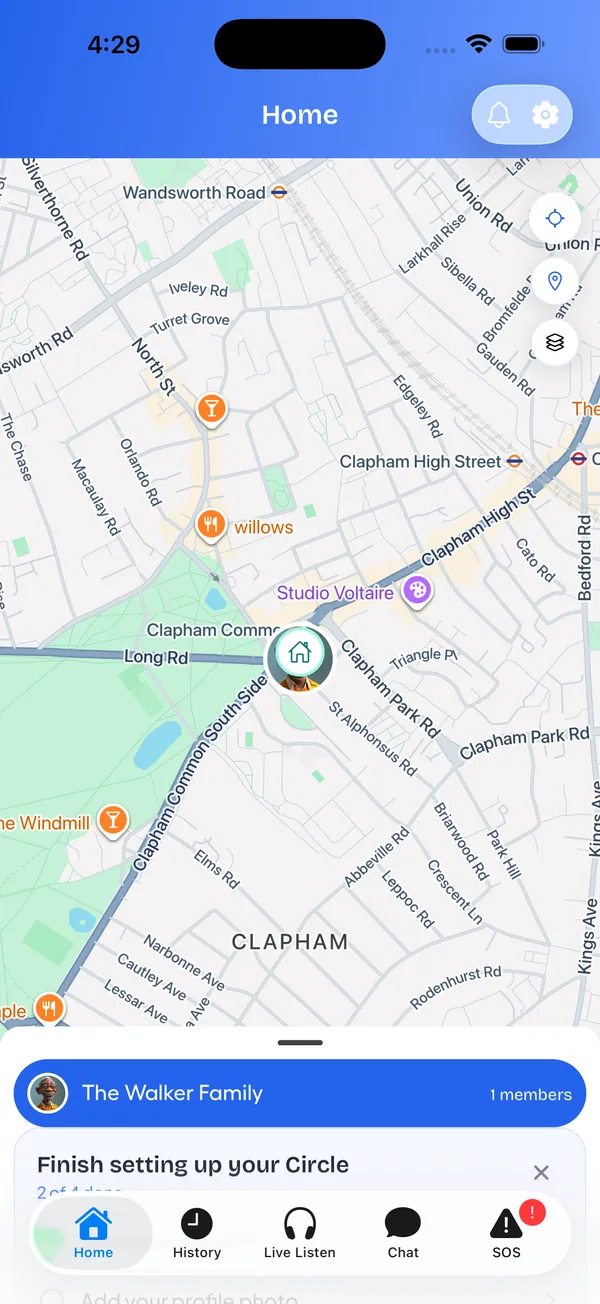
Life Guardian is free to download, and joining a Circle you’re invited to is free. Creating your own Circle needs Premium, £4.99 a month or £49.99 a year in the UK. Invited family members don’t pay. See how Life Guardian works, or compare it with other apps in our guide to the best family tracking apps in the UK.
Which should you choose?
- You’ve lost your iPhone and only have an Android phone to hand: icloud.com/find, straight away.
- You want to see one family member’s iPhone now and then: ask them to share from Google Maps.
- Your family already uses Family Sharing and you have an Apple Account: Find Devices on iCloud.com can help find a lost family device.
- You want the whole mixed family on one map, with alerts and SOS: a cross-platform family locator app.
If the location stops updating
Whatever you use, the iPhone has to be switched on, connected and allowed to use its location. You can see and change each app’s location access in Settings → Privacy & Security → Location Services (Apple Support). Apps ask for different levels of access, so follow the app’s own instructions: for Google Maps sharing, our iPhone and Android guide explains the setting that keeps the location updating in the background. Low Power Mode reduces background activity (Apple Support), so it’s worth checking if updates are patchy, although it isn’t always the cause. Our guide to Life360 not updating location walks through other phone settings that can stop location updates, including on Android.
Frequently asked questions
Can an Android phone track an iPhone?
Yes, in three ways. You can find your own iPhone at icloud.com/find in any browser. You can see a family member’s iPhone if they share their location with you, for example from Google Maps. Or you can use a family locator app that runs on both. Each method needs your own Apple Account or the iPhone owner’s agreement.
Can I use Find My on an Android phone?
There’s no Find My app for Android. But you can use Find Devices on iCloud.com in an Android browser to find your own Apple devices, and family members’ devices if you’re in their Family Sharing group and they share their location with the family.
Do I need a verification code to find my iPhone from Android?
Not to find your iPhone. At icloud.com/find, choose the Find Devices button and Apple lets you sign in without a two-factor authentication code. That option is only for locating your devices; other iCloud.com features may still ask for a code.
Can I find my iPhone if it’s switched off?
Find Devices on iCloud.com shows the iPhone as “Offline” and its last known location for up to 24 hours. You can ask to be emailed when it’s back online.
Will someone know if I can see their iPhone’s location?
With the methods in this guide, yes. Google Maps location sharing and family locator apps such as Life Guardian are started or accepted by the person sharing, and they can stop or pause sharing. That’s how location sharing should work.
Is it free?
iCloud.com/find, Google Maps location sharing and Family Sharing are free. Family locator apps vary. Life Guardian is free to join, and creating a Circle needs Premium.
Sources
- Apple Support: How to find your lost iPhone or iPad, checked 10 November 2026
- Apple Support: Locate a device in Find Devices on iCloud.com, checked 10 November 2026
- Apple Support: Share your location in Find My, checked 10 November 2026
- Apple Support: Turn Location Services and GPS on or off, checked 10 November 2026
- Apple Support: Use Low Power Mode, checked 10 November 2026
- Google Account Help: Manage your Location Sharing settings, checked 10 November 2026
- Google: Find, secure or erase a lost Android device, checked 10 November 2026

Waleed Imtiaz writes Life Guardian's guides for the team that builds Life Guardian 24/7. Features described here were checked in the app, and competitor details link to their source with the date we checked them. About us.