How to Share Location Between iPhone and Android (2026 Guide)
Yes, an iPhone can share its location with an Android phone. Step-by-step ways to share live location both ways in 2026, and what to do when it stops updating.
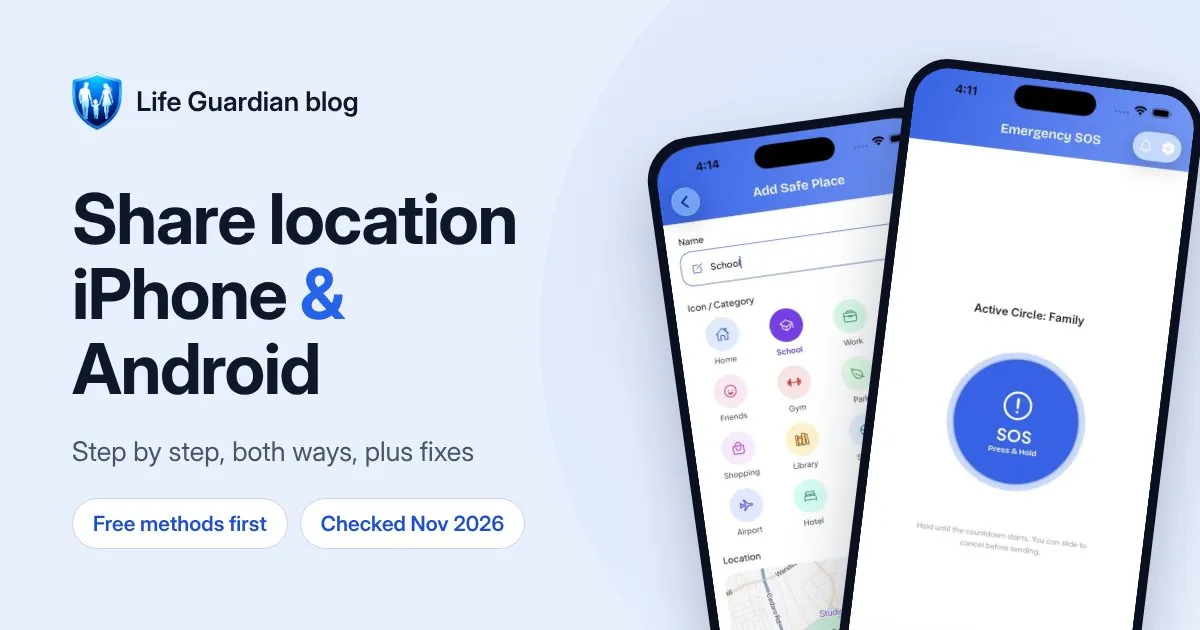
Quick answer: yes, you can share your location between an iPhone and an Android phone, just not with Apple’s Find My, which only works between Apple devices. The simplest free way is Google Maps: install it on the iPhone, sign in with a Google account and share your real-time location with the other person’s Gmail address, for as long as you like. For a quick “I’m on my way”, WhatsApp Live Location works on both phones too. If you want the whole family on one map with arrival alerts and an SOS button, a cross-platform family locator app is the better fit.
We make Life Guardian, one of the apps mentioned at the end of this guide. Every step for Google Maps, Apple and WhatsApp below comes from their own help pages, checked on 10 November 2026, and each is linked under Sources.
Why Find My doesn’t work with Android
Apple’s Find My is built into every iPhone and is excellent between Apple devices. But Apple’s own guidance is clear: to share Live Location, both you and the person you’re sharing with need an iPhone with iOS 15 or later. There’s no Find My app for Android, so an Android user can’t see an iPhone in Find My, and an iPhone can’t see an Android phone there either. (If you’ve lost your own iPhone and only have an Android phone to hand, see how to track an iPhone from an Android phone.)
So in a mixed family, where perhaps a parent has an iPhone and a teenager has a Samsung, you need something that runs on both.
Your options at a glance
| Method | How long it shares | What the other person needs | Arrival and departure alerts | Cost |
|---|---|---|---|---|
| Google Maps location sharing | From a set time up to “until you turn this off” | A Google account (Gmail) | Yes, up to 5 places per person | Free |
| Google Maps link | Up to 24 hours | Just the link | No | Free |
| WhatsApp Live Location | A time you choose, then it stops | WhatsApp, in the same chat | No | Free |
| Apple Find My | Up to indefinitely | An iPhone | Yes | Free |
| Family locator app (for example Life Guardian) | Ongoing, while sharing is on | The same app | Yes, for places you set up | Varies |
Method 1: share from an iPhone to an Android phone with Google Maps
This is the best free option for ongoing sharing, because the Android user sees you in Google Maps, which is already on their phone. These steps follow Google’s own help page:
- On the iPhone, install Google Maps from the App Store if you don’t have it, and open it.
- Make sure you’re signed in to your Google account. If you don’t have one, you can create one for free.
- Make sure the other person’s Gmail address is in your Google Contacts.
- Tap your profile picture (top right), then Location sharing, then New share.
- Choose how long to share: for a set time, or “Until you turn this off”.
- Tap the person you want to share with. If asked, allow Google Maps to access your contacts.
- Tap Share.
Then set the iPhone’s location permission correctly. In Settings > Privacy & Security > Location Services, make sure Location Services is on, tap Google Maps and choose Always. Google lists both “While using the app” and “Always” (Google); on an iPhone, “While using the app” means the app can only check your location while you have it open, so choose “Always” if you want your shared location to keep updating in the background. Leaving Precise Location on helps accuracy.
Method 2: share from an Android phone to an iPhone with Google Maps
The steps are almost identical on Android (Google’s Android help page):
- Open Google Maps on the Android phone and check you’re signed in to your Google account.
- Make sure the other person’s Gmail address is in your Google Contacts.
- Tap your profile picture, then Location sharing, then New share.
- Choose how long to share, pick the person, and tap Share.
The iPhone user then needs the Google Maps app on their iPhone, signed in with the Google account you shared with, to see you.
Find Hub works too. On Android, Google’s location sharing also appears in the Find Hub app, where you can share for an hour, until the end of the day, or until you stop. Google treats it as one Location Sharing setting across Maps, Find Hub and its other apps (Google Account help), so the person you share with can still find you in Google Maps on their iPhone.
How the other person sees your location
Once you’ve shared, the other person opens Google Maps, taps their profile picture, then Location sharing, and taps your name. Google says people you share with can see your name and photo, your device’s recent location even when you aren’t using Google apps, and your battery level and whether it’s charging (Google). On Android they can tap your icon and choose Refresh to request an update.
Get a notification when they arrive or leave
The person you share with can add Location Sharing notifications for places like home or school (Google):
- In Google Maps, tap your profile picture, then Location sharing.
- Tap the person who shares with you.
- Under Notifications, tap Add, choose the place, and pick Every time they arrive and/or Every time they depart.
- Tap Save.
You can add up to five notifications per person. The person sharing gets an email telling them you’ve added one, and they can turn notifications off at any time. That openness is a good thing: everyone knows what’s being shared.
Method 3: share with someone who doesn’t have a Google account
If the other person doesn’t use Google, you can send a link instead. In Google Maps, tap your profile picture, then Location sharing, then New share, and send the link by Messages, WhatsApp or email. On Android you can copy the link to paste anywhere. Google says your real-time location can be seen by people with the link for up to 24 hours (Google). Arrival and departure notifications aren’t available when you share by link.
Method 4: share for a short time with WhatsApp Live Location
For a one-off journey (“I’ve left the station, see you in 20 minutes”), WhatsApp Live Location is quick, works between iPhone and Android, and is end-to-end encrypted. From WhatsApp’s help page:
- Give WhatsApp location permission (on iPhone: Settings > Privacy & Security > Location Services > WhatsApp, then Always or While Using the App).
- Open the chat with the person or group.
- Tap +, then Location, then Share live location.
- Choose how long to share, and send.
It stops automatically when the time runs out, and you can tap Stop sharing at any point. It’s not designed for always-on family sharing, and there are no arrival alerts.
Sharing with children and teenagers
Two things are worth knowing before you set this up for a child:
- Google limits sharing for under-18 accounts. Google says that when its systems indicate you may be under 18, you can’t share your location for more than 24 hours at a time (Google). Accounts managed by a parent are handled through Google Family Link instead.
- Family Link is designed for a younger child’s Android phone. Parents can see the child’s device location and get alerts for places like school, as covered in our guide to the best family tracking apps in the UK.
For a teenager with an iPhone and a parent on Android (or the other way round), a family locator app that runs on both is usually simpler than juggling Google accounts.
Location not updating? How to fix it
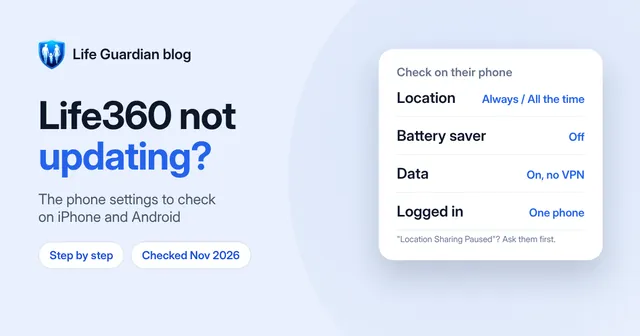
Location sharing depends on the phone being able to run the app in the background. If someone’s location looks out of date, check these in order:
On an iPhone
- Location Services: Settings > Privacy & Security > Location Services must be on, and the sharing app set to Always.
- Precise Location: on, in the same screen, for an accurate position.
- Low Power Mode: it limits background activity. Google lists it as a cause of a location that “jumps around” (Google).
- Background App Refresh: Settings > General > Background App Refresh, on for the app.
On an Android phone
- Location turned on, and the app’s location permission set to Allow all the time.
- Battery optimisation: set the app to Unrestricted (the exact menu name varies by manufacturer, for example on Samsung and Xiaomi phones). Aggressive battery savers are the most common reason background location stops on Android.
- Data Saver off for the app, or the app allowed to use data in the background.
On both
- The phone needs an internet connection (mobile data or Wi-Fi) and must not be in Aeroplane mode, switched off or out of battery.
- Location is never instant or guaranteed. Indoors, underground or between tall buildings, GPS can be inaccurate, and apps show the last known location with the time it was updated. If the time is old, the phone probably can’t send an update right now.
- Make sure both phones are running the latest version of the app.
Using Life360? Our guide to Life360 not updating location has the full checklist from Life360’s own help pages.
Consent and privacy: share openly
Location sharing works best when everyone knows about it and has agreed to it. All the methods in this guide are designed to be used openly: you choose who to share with and for how long, and you can stop at any time. Google emails the person sharing when someone adds an arrival or departure notification about them, and Apple’s Safety Check lets iPhone users quickly stop sharing if their personal safety is at risk.
A few good habits for families:
- Agree together why you’re sharing and who can see it.
- Review who you share with now and then, and stop sharing with anyone who no longer needs it.
- For teenagers, be clear about when it’s on, and use it for reassurance (“did you get home?”) rather than constant checking.
Secretly tracking another adult’s phone is a different matter. It can break the law in the UK and seriously harms trust, and none of the apps in this guide are designed for it.
When a family locator app makes more sense
Google Maps is a great free tool for one or two people. Families often outgrow it when they want:
- Everyone on one map, whatever phone they use, without everyone needing a Gmail account
- Arrival and departure alerts for the places that matter, set up once for the whole family
- An SOS button that alerts the whole family at once
- Check-ins, chat and calls in the same app
- A clear way for each person to pause sharing
Life Guardian 24/7 is a private family locator for iPhone and Android. Everyone in a Circle appears on one live map with their battery level, you can add Safe Places such as Home, School or Work and get arrival and departure alerts, and press-and-hold SOS alerts everyone in your Circle with your location after a 3-second countdown, which you can cancel. Each member can pause location sharing for any Circle.
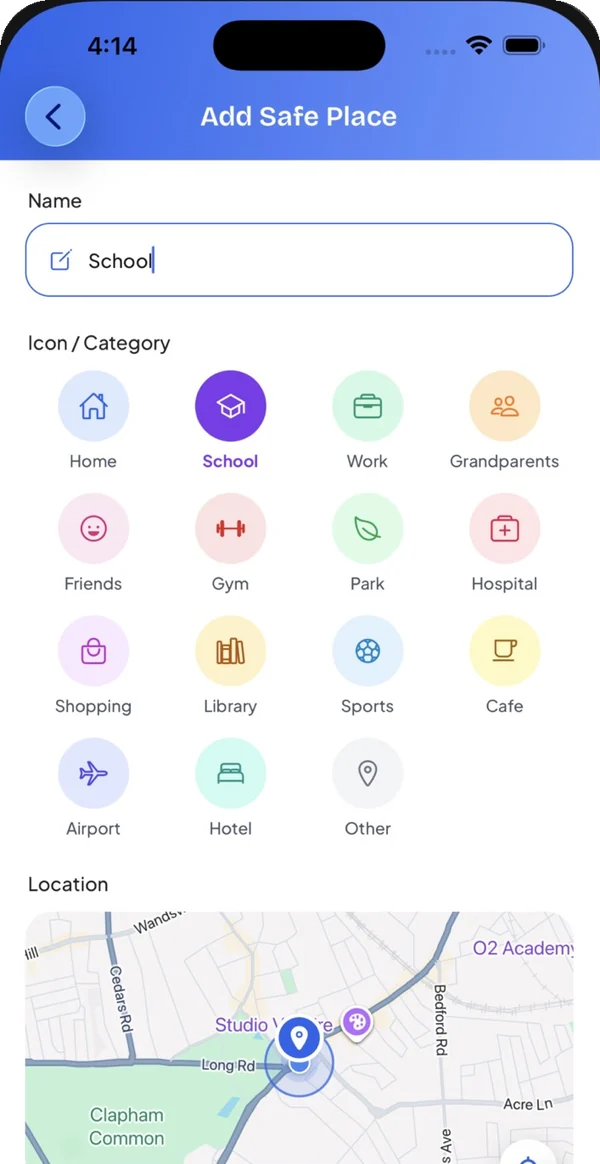
Price: free to download and free to join a Circle you’re invited to. Creating a Circle needs Premium, £4.99 a month or £49.99 a year in the UK, and everyone you invite is free (see plans). New subscribers may be eligible for a 7-day free trial.
Keep in mind: everyone needs the app installed, and the same phone settings above (location permission, battery optimisation, signal) affect it just like any other location app, so updates are never guaranteed. SOS alerts your Circle, not the emergency services, so always call 999 in an emergency.
Comparing more options? See the best family tracking apps in the UK, the best Life360 alternatives, or our detailed Life Guardian vs Life360 comparison.
Frequently asked questions
Can I share my location from an iPhone to an Android phone?
Yes. Install Google Maps on the iPhone, sign in with a Google account, tap your profile picture, then Location sharing, then New share, and choose the Android user’s Gmail address. You can also send a Google Maps link (up to 24 hours) or use WhatsApp Live Location. Apple’s Find My won’t work, because it needs an iPhone on both ends.
Can I share my location indefinitely from an iPhone to an Android phone?
Yes, with Google Maps. When you create the share, choose “Until you turn this off”. The Android user needs a Google account, and your iPhone should allow Google Maps to use your location “Always”. Google limits accounts it believes belong to under-18s to 24 hours at a time.
Can an Android user see my location in Find My?
No. Find My only works between Apple devices, and there’s no Find My app for Android. Use Google Maps location sharing or a cross-platform app instead.
Does the other person need a Google account?
For ongoing sharing in Google Maps, yes: Google says the recipient must have a Gmail account. Without one, you can send a link that shows your location for up to 24 hours.
Can I track my daughter’s iPhone from my Android phone?
Yes, if she shares her location with you. She can share from Google Maps on her iPhone to your Gmail address, or you can both use a cross-platform family locator app. Talk to her about it first: sharing works best when it’s agreed rather than secret.
Why isn’t someone’s shared location updating?
Usually it’s a phone setting: location permission not set to “Always”, Low Power Mode or battery optimisation stopping the app in the background, no signal, or the phone being switched off. Check the troubleshooting steps above. The app will show the last known location and when it was updated.
Sources
- Apple: Share your location with iPhone, checked 10 November 2026
- Google Maps Help: Share your real-time location with others (iPhone), checked 10 November 2026
- Google Maps Help: Share your real-time location with others (Android), checked 10 November 2026
- Google Maps Help: Get Location Sharing notifications, checked 10 November 2026
- Google Maps Help: Find and improve your location’s accuracy (iPhone), checked 10 November 2026
- Google Account Help: Manage your Location Sharing settings, checked 10 November 2026
- Google: Find your friends and family with Find Hub
- WhatsApp Help Center: How to use live location, checked 10 November 2026

Waleed Imtiaz writes Life Guardian's guides for the team that builds Life Guardian 24/7. Features described here were checked in the app, and competitor details link to their source with the date we checked them. About us.