Life360 Not Updating Location? How to Fix It (2026)
Life360 stuck or not updating someone's location? Check these iPhone and Android settings first: location access, battery saving, background refresh and data.
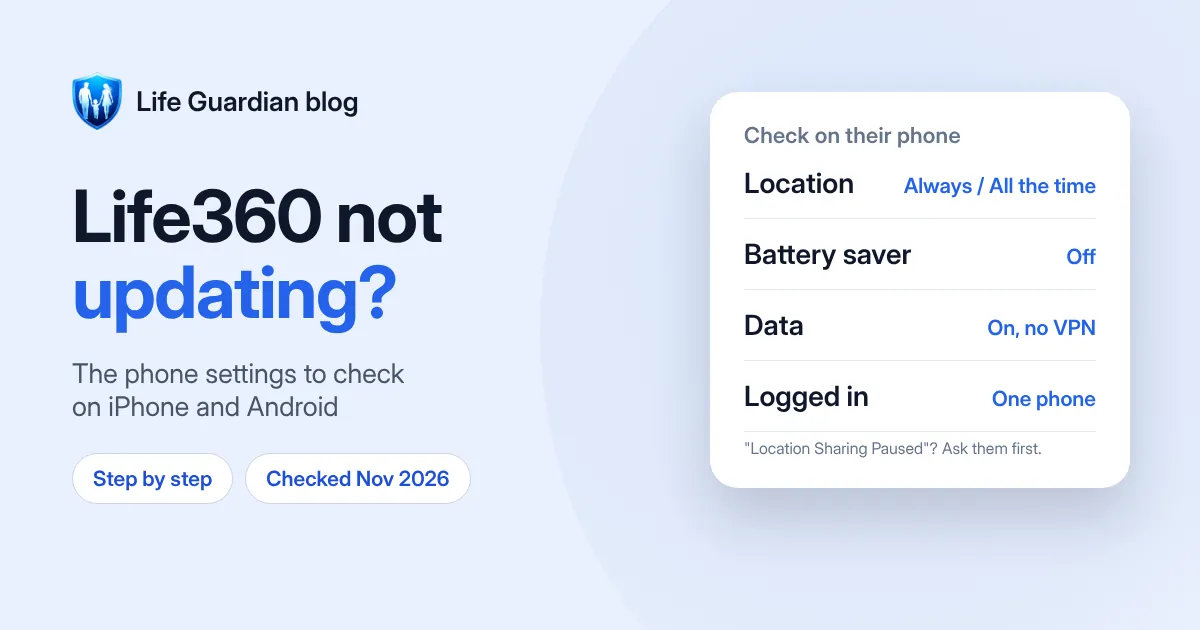
Quick answer: when Life360 stops updating someone’s location, the cause is almost always on their phone, not yours. The five most common causes are:
- Location access isn’t set to Always (iPhone) or Allow all the time (Android), or Precise Location is off.
- Low Power Mode or battery saving is on, which limits background activity.
- No data connection: weak signal, Aeroplane Mode, Low Data Mode or Data Saver.
- The app is logged out, or hasn’t been opened for days.
- The phone is off or the battery is dead.
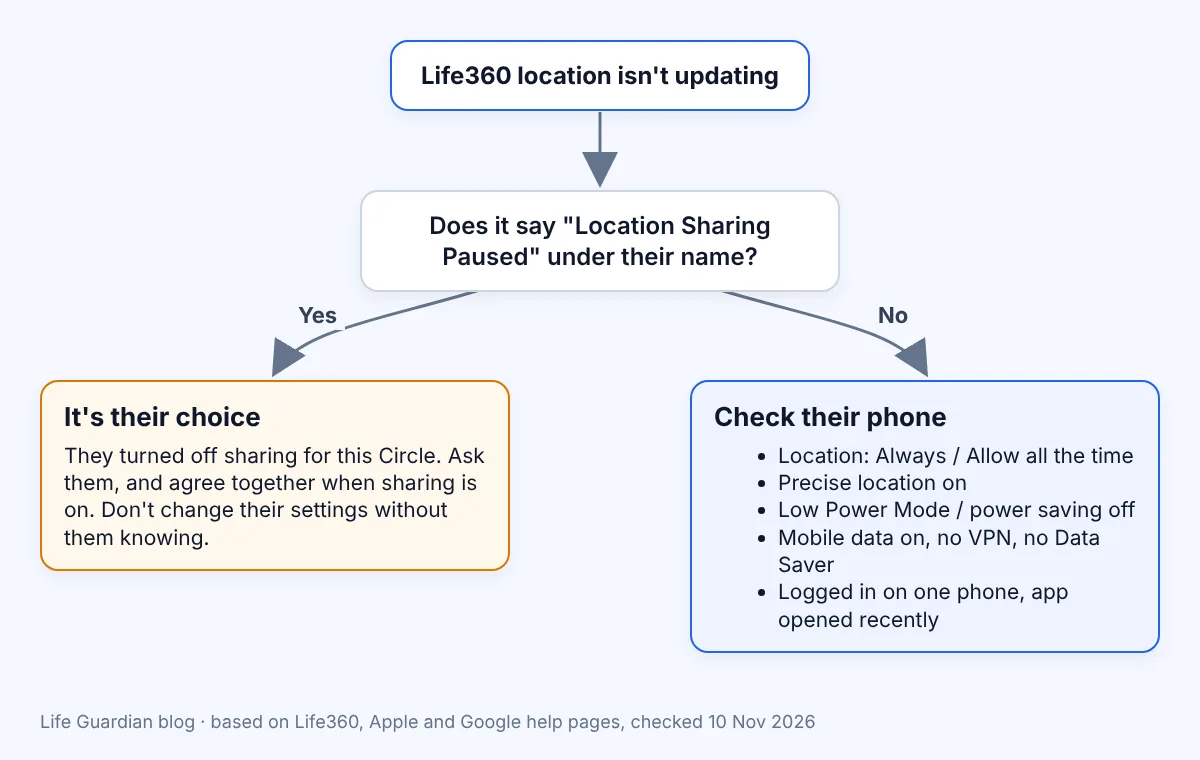
There’s one more possibility that isn’t a fault at all: they’ve paused location sharing. If you see “Location Sharing Paused” under their name, that’s a choice, so talk to them rather than troubleshoot.
Every step below comes from Life360’s, Apple’s or Google’s own help pages, checked on 10 November 2026 and linked under Sources. Menu names can differ slightly between phone models and software versions. We make Life Guardian, another family locator app; the same phone settings affect every location app, ours included. If something here has changed, tell us at support@lifeguardian247.com.
First: is it the phone, or did they pause sharing?
Before changing settings, look at what Life360 shows under the person’s name.
| What you see | What it usually means | What to do |
|---|---|---|
| “Location Sharing Paused” | They turned off location sharing for this Circle | Ask them. It’s their choice, and only they can turn it back on |
| No battery level shown | The phone has lost its connection to Life360 | Check the settings below on their phone |
| An old location that hasn’t moved | Updates have stopped: battery saving, permissions, signal or logged out | Work through the fixes below on their phone |
| Battery shown as dead | The phone is off or out of charge | Wait until it’s charged and Life360 is opened again |
Life360 explains that when someone turns off location sharing, the rest of the Circle sees “Location Sharing Paused” under their name, and that this only affects the Circle they turned it off in (Life360). Life360 also lists the situations where a member’s battery level disappears: lost connection, logged out, sharing paused, location permission off, power saving on, background permissions off, GPS off, Aeroplane Mode on, or a location more than 30 minutes old (Life360).
If they paused sharing on purpose, don’t try to work around it. Nobody should change another person’s privacy settings without them knowing. If you’re worried, ask them, and agree together when location sharing is on.
Fixes on iPhone
These are done on the phone of the person whose location isn’t updating.
- Set location to Always. Open Settings → Life360 → Location, choose Always, and turn on Precise Location (Life360). Apple explains that “While Using the App” only allows location while the app is on screen, whereas “Always” allows it in the background (Apple Support).
- Check Location Services is on for the whole phone. Go to Settings → Privacy & Security → Location Services and make sure it’s switched on (Apple Support).
- Turn off Low Power Mode. Go to Settings → Battery (on iPhone 15 and later, Settings → Battery → Power Mode). Apple says Low Power Mode reduces background activity and turns off Background App Refresh (Apple Support).
- Turn on Background App Refresh. Go to Settings → General → Background App Refresh, choose Wi-Fi & Mobile Data, and make sure Life360 is on.
- Turn off Low Data Mode. Low Data Mode restricts background network use and turns off Background App Refresh (Apple Support). Life360 recommends setting Data Mode to Allow More Data (Life360).
- Allow Motion & Fitness. Go to Settings → Life360 and turn on Motion & Fitness, which Life360 uses for driving features (Life360).
- Keep Wi-Fi switched on, even when not connected to a network. Life360 says this improves location accuracy.
Fixes on Android
Menu names vary between manufacturers. The steps below follow Life360’s instructions for Pixel and Samsung phones, and Google’s Android help.
- Set location to Allow all the time. Go to Settings → Location → App location permissions → Life360, choose Allow all the time, and turn on Use precise location (Google). On Samsung phones, Life360 lists the route as Settings → Location → App permissions → Life360 (Life360).
- Turn off power saving, and set Life360’s battery setting to Not optimised (sometimes called Unrestricted) (Life360). The exact menu depends on the phone maker.
- Turn off Data Saver and any “limit mobile data usage” setting (Life360).
- Allow Physical activity. Go to Settings → Apps → Life360 → Permissions → Physical activity → Allow (Life360).
- Stop Android pausing the app. In Settings → Apps → Life360, check that Pause app activity if unused is off. Google explains that when this is on, Android can remove permissions from apps that haven’t been used for a while (Google).
- Allow Nearby devices (Bluetooth) if prompted, and keep Wi-Fi switched on (Life360).
Network and connection problems
Even with the right settings, Life360 needs a data connection to send a new location. Life360’s own checklist says to (Life360):
- make sure there’s a good mobile data connection and Aeroplane Mode is off
- avoid mobile hotspots and in-car Wi-Fi hotspots
- not use a VPN with Life360, because it interferes with accuracy
- be aware that on some networks, mobile data may be unreliable during a phone call
- avoid parental control or security apps that can block background activity
In areas with weak signal, such as rural roads, underground or inside large buildings, updates may simply be delayed until the phone reconnects.
The app itself
- Log in on one phone only. Life360 recommends using the app on one device at a time.
- Keep the app updated to the latest version.
- Open the app after the battery has died, and at least every two days. Life360 says this stops the app entering “sleep mode”.
- Remember that logging out stops updates. Life360 says your location no longer updates when you log out or turn off location permissions (Life360).
Life360’s refresh steps
If the settings are all correct and it’s still stuck, Life360 suggests refreshing the app rather than uninstalling it (Life360):
- iPhone: log out of Life360 in its Settings, close the app from the app switcher, turn the phone off and on, then open Life360 and log in again.
- Android: log out of Life360, then in Settings → Apps → Life360 → Storage tap Clear cache and Clear data, restart the phone, and log in again.
Life360 specifically says not to uninstall the app as part of these steps. If none of this works, contact Life360 support.
Does Life360 drain the battery?
Any app that uses location in the background uses some battery. Life360 doesn’t publish a figure for how much, so we won’t guess one. What the official guidance does make clear is that the settings that save battery, such as Low Power Mode, power saving, Low Data Mode and battery optimisation, are also the ones that stop location updates. If you need a phone’s location to keep updating, those features have to stay off for Life360, and you’ll need to charge the phone a little more often.
Still not working, or thinking of switching?
If the person’s phone is set up correctly and Life360 still won’t update, it’s worth contacting Life360 support before giving up. If you’re comparing options anyway, see our guides on whether Life360 is free and the best Life360 alternatives in the UK. Life Guardian 24/7 is one of them, and the same phone settings apply to it, because they control background location for every app. For mixed iPhone and Android families, our guide on sharing location between iPhone and Android covers the free options too.
Comparing family locator apps? Our Life Guardian vs Life360 comparison sets out prices, features and privacy side by side, with sources. Life Guardian 24/7 is free to download and free to join a Circle you’re invited to; creating your own Circle needs Premium, £4.99 a month or £49.99 a year in the UK.
Frequently asked questions
Why isn’t someone’s Life360 location updating?
Usually because of a setting on their phone: location access not set to Always or Allow all the time, Low Power Mode or power saving on, no data connection, or the app logged out. If Life360 shows “Location Sharing Paused” under their name, they’ve turned off sharing for that Circle themselves.
What does “Location Sharing Paused” mean on Life360?
It means that person has turned off location sharing for that Circle. Life360 says it only affects the Circle they turned it off in. It isn’t a fault, so ask them rather than trying to change it.
Does Low Power Mode stop Life360 updating?
It can. Apple says Low Power Mode reduces background activity and turns off Background App Refresh, and Life360’s own checklist says Low Power Mode needs to be off for accurate location.
Why does Life360 not show someone’s battery level?
Life360 hides the battery level when the phone has lost connection, is logged out, has sharing paused, has location permission or GPS turned off, has power saving or Aeroplane Mode on, or hasn’t updated its location for more than 30 minutes.
Does Life360 work without Wi-Fi?
Yes, it can use mobile data. Life360 still recommends keeping Wi-Fi switched on, even when not connected to a network, because it improves location accuracy.
Should I uninstall and reinstall Life360 to fix it?
Life360’s own refresh steps say not to uninstall the app. Instead, log out, close the app (or clear its cache and data on Android), restart the phone and log back in.
Sources
- Life360: Improve Location Accuracy, checked 10 November 2026
- Life360: Life360 Permission Settings, checked 10 November 2026
- Life360: App Refresh Steps, checked 10 November 2026
- Life360: Share My Location, checked 10 November 2026
- Life360: Troubleshooting Battery Levels, checked 10 November 2026
- Life360: Location Sharing & Privacy, checked 10 November 2026
- Apple Support: Turn Location Services and GPS on or off, checked 10 November 2026
- Apple Support: Use Low Power Mode, checked 10 November 2026
- Apple Support: Use Low Data Mode, checked 10 November 2026
- Google: Manage location permissions for apps, checked 10 November 2026
- Google: Change app permissions on your Android phone, checked 10 November 2026

Waleed Imtiaz writes Life Guardian's guides for the team that builds Life Guardian 24/7. Features described here were checked in the app, and competitor details link to their source with the date we checked them. About us.